
Would you like to be able to view the schedules of several people all at the same time to see when they're free? You can use Meeting Planner to quickly see multiple people's free/busy information in one window. I am continue with Microsoft Outlook related mail tips for all outlook users. I want to share My experience with Microsoft Outlook Support and Computer Help.
Use Meeting Planner to view multiple people's free/busy information simultaneously
1. Click Calendar on the Outlook Shortcut Bar.
2. On the Actions menu, click Plan a Meeting.
3. Click Invite Others.
4. In the Type name or select from list box, enter the name of each person whose calendar you want to see, and click Required after entering each name.
5. Click OK, and then use the scroll bars to view the free/busy time for these people.
If you've been given permission to view other people's calendars, you can see appointment details by right-clicking on a block of time shown as busy.
Tip If you want to make a meeting, click Autopick to have Outlook automatically find the next available free time for all these people, and then click Make Meeting.
Showing posts with label Online Tech Support. Show all posts
Showing posts with label Online Tech Support. Show all posts
Thursday, June 5, 2008
Tuesday, June 3, 2008
Specify a size limit on messages you download when synchronizing folders
0
comments
Labels: Computer Help, Computer Repair, Computer Support, Online Tech Support, Technical Support
Labels: Computer Help, Computer Repair, Computer Support, Online Tech Support, Technical Support

- While online, click Inbox.
- On the Tools menu, point to Synchronize, and then click Offline Folder Settings.
- Click Download Options.
- Under Message size limit, select the Don't download messages larger than check box, and then enter in kilobytes the maximum size of messages you want to download. (50 kilobytes is a standard limit.) Outlook notifies you when it moves a message larger than this to the Large Messages folder, and enables you to view the message if necessary.
- If you want to receive some large messages but not others, select the appropriate check boxes under Exceptions to specify which messages you want to download. For example, you can specify that messages from a certain person, such as your manager, be downloaded to your Inbox regardless of size.
I am trying to provide better solution for any problem related to Microsoft Outlook 2000 and also want to share my experience with Computer Help and Technical Support for computer issue.
Tuesday, May 27, 2008
How to install Help for Outlook Forms
0
comments
Labels: Computer Help, Computer Repair, Computer Support, Online Tech Support, Technical Support
Labels: Computer Help, Computer Repair, Computer Support, Online Tech Support, Technical Support
Outlook 2000 Help contains very limited information about Outlook forms, the object model, and other programming areas. Before designing Outlook forms, install Outlook Object Library Help and Computer Help.
- In any Outlook form, such as an e-mail message, on the Tools menu, point to Forms, and then click Design This Form.
- On the Form menu, click View Code.
- In the Script Editor, on the Help menu, click Microsoft Outlook Object Library Help.
You cannot access the Outlook Object Library Help topics from the Office Assistant. Instead, click the Answer Wizard tab and type a question to find the topic you need, or use the Table of Contents on the Contents tab.
Tuesday, May 20, 2008
Add e-mail addresses and subject lines
0
comments
Labels: Computer Help, Computer Repair, Computer Support, MIcrosoft Outlook Help, Online Tech Support, Technical Support
Labels: Computer Help, Computer Repair, Computer Support, MIcrosoft Outlook Help, Online Tech Support, Technical Support
1. In the Customize dialog box, in the Categories list, click File.
2. In the Commands list, click Mail Message and drag it to the custom menu button that you added to the toolbar. When you rest the pointer over the custom button, a gray box appears. Drop the Mail Message command onto the gray box. If you are adding a subsequent command, no gray box will appear. Drop the command onto the most recent command you added.
If you want to use a different icon, choose the command from the Commands list that has the icon you want. For example, if you add a distribution list, you can use the Distribution List command to get the distribution list icon.
3. On the toolbar, right-click the Mail Message command, and in the Name box on the shortcut menu, type a name for the person, distribution list, or alias you're assigning to the command.
4. Then, on the shortcut menu, point to Assign Hyperlink, and then click Open.
5. Under Link to, click E-mail Address.
6. In the E-mail address box, enter the e-mail address of the person, distribution list, or alias you want to assign to the command. If you want this automatically addressed message to also have a standard subject line, such as Status Report, type it in the Subject box.
Repeat these steps for each person, group, or standard subject line you want to add to the button. I also want to share my experience with Microsoft Outlook Help, Tips and Trick and Computer Help
Tuesday, May 13, 2008
Sort your e-mail twice in Outlook
0
comments
Labels: Computer Help, Computer Repair, Computer Support, Online Tech Support, Technical Support
Labels: Computer Help, Computer Repair, Computer Support, Online Tech Support, Technical Support
So your Microsoft Outlook Inbox is a mess. You have 150 pieces of unread messages from six months ago that are still not hidden away in folders. And you know you received an invitation to a meeting, but you don't remember when you received it. Good news: It's easy to find it. You can sort and then sort again.
- Click the Icon column heading in your Inbox. This organizes everything by type of e-mail — responses, invitations, and so on, each of which appear with a different icon in your Inbox.
- Highlight all of the messages that belong to the type you are looking for — in this case, meeting invitations.
- Click the Received column heading in the Inbox to sort again, this time by date. The items you highlighted remain highlighted, and you can spot the invitation you are looking for easily.
You can sort on any of the column headings in your Inbox. Each sort will become more refined as you select items.
I have to sketch out the details once again before this Monday for a official presentation. But then what i want to share here with you is my experience of sharing the Microsoft Outlook and providing a computer Help
Thursday, May 8, 2008
Problems using handheld devices with Outlook?
0
comments
Labels: Computer Help, Computer Repair, Computer Support, Online Tech Support, Technical Support
Labels: Computer Help, Computer Repair, Computer Support, Online Tech Support, Technical Support
Handheld and palm-size devices are becoming increasingly popular because they enable you to read and compose e-mail, schedule appointments, track contacts, and much more while you're on the road or away from your desktop computer Help. The most common problems users experience with handheld and palm-size devices and Outlook 2000 are related to the synchronization process. Synchronization transfers information you record in the handheld or palm-size device to your desktop PC and information from your desktop PC to the device through synchronization software.
Synchronization software varies among users. You might be using the software provided with your device, or third-party software. The combination of synchronization software, device, and its operating system affects how you resolve synchronization problems. Consequently, if you have problems with information you've synchronized, first consult the documentation or support resources for your synchronization software. If you determine the problem isn't with that software, search the Microsoft Help and Computer Support Web site for information on specific types of handheld or palm-size devices or for information on specific types of synchronization software.
Sunday, May 4, 2008
How to Apply HTML styles to an Outlook message
0
comments
Labels: Computer Help, Computer Repair, Computer Support, Online Tech Support, Technical Support
Labels: Computer Help, Computer Repair, Computer Support, Online Tech Support, Technical Support
For some messages, you'll want a more structured way of presenting the content. For example, you may need to publish a report that requires headings and subheadings, bulleted and numbered lists, and other formatted text. Instead of defining every formatting attribute for each type of paragraph, such as the text size, color, and alignment for each type of heading, use paragraph styles, which define all the attributes for a paragraph type. With HTML as your message format, Microsoft Outlook 2000 provides a variety of paragraph styles you can choose from to format your message.
Note If you're using Microsoft Word as your e-mail editor, type paragraph styles in the Office Assistant or on the Answer Wizard tab in the Help window, and then click Search.
- In the HTML message, select the paragraph you want to assign a style to.
- On the Formatting toolbar, in the Style box, click the name of the style you want to apply to the paragraph.
Styles affect an entire paragraph; however, you can change how individual letters or words look within a paragraph that you've applied a style to. For example, you can make text bold, italic, underlined, or a different color. For more information, type format text in the Office Assistant or on the Answer Wizard tab in the Help window, and then click Search.
The HTML message format also lets you enhance messages using special designs and formatted text. For more information, read Create stylish and decorative e-mail in Outlook using HTML.
Note While many popular e-mail programs besides Outlook 2000 — such as Outlook 98, Outlook Express 4.0, Eudora 4.0, and Netscape Messenger 4.0 — understand HTML messages, some do not. For more information about sending HTML messages, read choose the best Outlook 2000 message format for a recipient.
I am sharing my information with Microsoft Outlook 2000, Computer Help and Technical SupportWednesday, April 30, 2008
Access the Internet through Outlook
0
comments
Labels: Computer Help, Computer Repair, Computer Support, Online Tech Support, Technical Support
Labels: Computer Help, Computer Repair, Computer Support, Online Tech Support, Technical Support
Use Microsoft Outlook to send and receive Internet mail, view Web pages, and participate in Internet newsgroups.
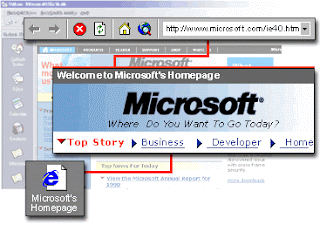

Here are some of the Internet features you can use:
View Web pages in Outlook You can view frequently used Web pages in the Outlook window by adding shortcuts to those pages to the Outlook Bar. You can also go to sites from your Favorites menu.
Web page addresses for contacts Store a Web page address for each contact so that you can quickly go to the contact's home page.
Hyperlinks in e-mail messages Type or copy a hyperlink address into the text box of a message, and Outlook automatically makes the text into a link. The recipient can click the link to go directly to a Web page or file server.
iCalendar: Internet free/busy and meeting requests Use this Internet standard to share Calendar free/busy information over the Internet, and to send and receive meeting requests and responses over the Internet.
Outlook Express newsreader Open the Outlook Express newsreader, which is part of Microsoft Internet Explorer, from Outlook and subscribe to your favorite newsgroups.
S/MIME: Internet e-mail security Send and receive signed and encrypted Internet e-mail messages.
vCard: Internet contacts format Use this Internet standard to send and receive contact information as Internet vCards.
Folder home page Associate a Web page with any personal or Microsoft Exchange Server folder.
I want to share my experience Microsoft Outlook Technical Support and Computer Support Assistance .
Sunday, April 27, 2008
How to install Help for Outlook Forms
0
comments
Labels: Computer Help, Computer Repair, Computer Support, MIcrosoft Outlook Help, Microsoft Outlook Support, Online Tech Support, Technical Support
Labels: Computer Help, Computer Repair, Computer Support, MIcrosoft Outlook Help, Microsoft Outlook Support, Online Tech Support, Technical Support
Outlook 2000 Help contains very limited information about Outlook forms, the object model, and other programming areas. Before designing Outlook forms, install Outlook Object Library Help.
- In any Outlook form, such as an e-mail message, on the Tools menu, point to Forms, and then click Design This Form.
- On the Form menu, click View Code.
- In the Script Editor, on the Help menu, click Microsoft Outlook Object Library Help.
You cannot access the Outlook Object Library Help topics from the Microsoft Office Assistant and Computer Support. Instead, click the Answer Wizard tab and type a question to find the topic you need, or use the Table of Contents on the Contents tab.
Tuesday, April 22, 2008
Problems using handheld devices with Outlook?
1 comments
Labels: Computer Help, Computer Repair, Computer Support, Online Tech Support, Technical Support
Labels: Computer Help, Computer Repair, Computer Support, Online Tech Support, Technical Support
Handheld and palm-size devices are becoming increasingly popular because they enable you to read and compose e-mail, schedule appointments, track contacts, and much more while you're on the road or away from your desktop computer. The most common problems users experience with handheld and palm-size devices and Microsoft Outlook 2000 are related to the synchronization process. Synchronization transfers information you record in the handheld or palm-size device to your desktop PC and information from your desktop PC to the device through synchronization software.
Synchronization software varies among users. You might be using the software provided with your device, or third-party software. The combination of synchronization software, device, and its operating system affects how you resolve synchronization problems. Consequently, if you have problems with information you've synchronized, first consult the documentation or support resources for your synchronization software. If you determine the problem isn't with that software, search the Microsoft Help and Computer Support Web site for information on specific types of handheld or palm-size devices or for information on specific types of synchronization software.
Subscribe to:
Posts (Atom)